

Windows 11 Storage Bug Confirmed: Capability Access Manager Issue
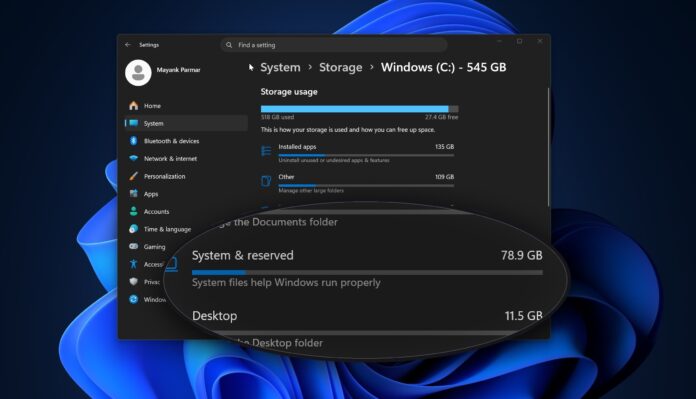
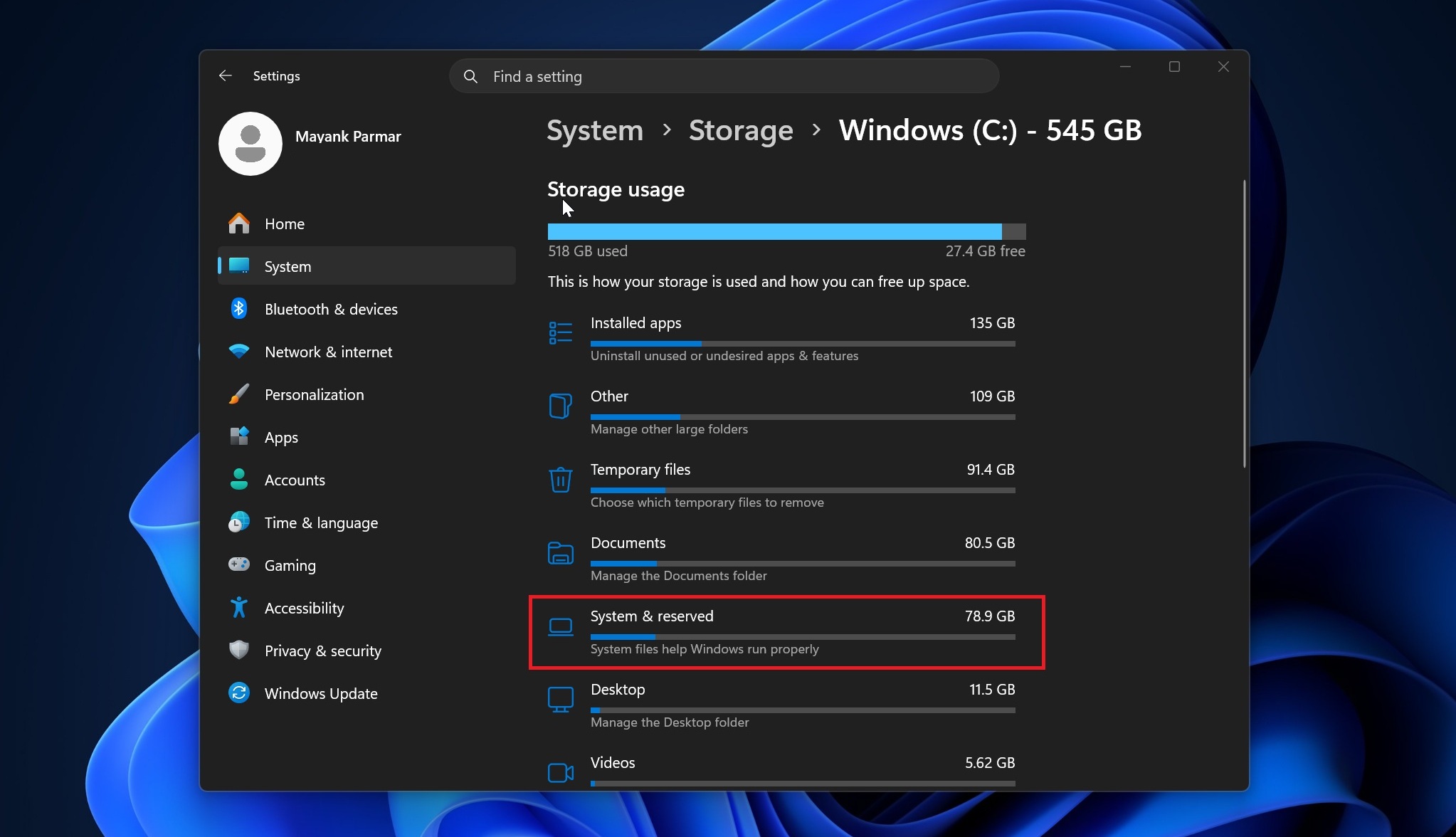
If you suspect that your storage on Windows 11 is being consumed by something other than your downloads, it’s worth checking your system storage. Navigate to Settings > Storage > Show more categories > System & Reserved, and inspect the System storage. If it’s occupying hundreds of gigabytes, it could be due to a recent bug where a file linked to Capability Access Manager continuously fills the system drive until it runs out of space.
The safest solution is to install Windows 11 KB5095093 via Windows Update or wait for the July 2026 Patch Tuesday update, which is expected to include an automatic fix.
Identifying the Problematic File
In tests conducted by Windows Latest, a specific file, CapabilityAccessManager.db-wal, has been identified as consuming significant storage space. This file can be found in the following directory:
C:\ProgramData\Microsoft\Windows\CapabilityAccessManager
However, this folder is protected by Windows, meaning attempts to access it via File Explorer or PowerShell may result in an “Access denied” error. It is not recommended to change ownership or permissions to confirm its size. Instead, you can use a read-only command, as explained later in this article, to safely check the file size.
Not all users are affected, but you can verify your system by going to Settings > Storage > Show more categories > System & Reserved and checking System files usage. If it’s in the range of hundreds of gigabytes, you are likely impacted.
What Is Capability Access Manager in Windows 11?
The Capability Access Manager manages app permissions for features like the microphone, location, camera, and screen capture. It also supports other privacy-related functionalities in Windows 11. Essentially, it acts as a logging system to help track app activities and permissions.
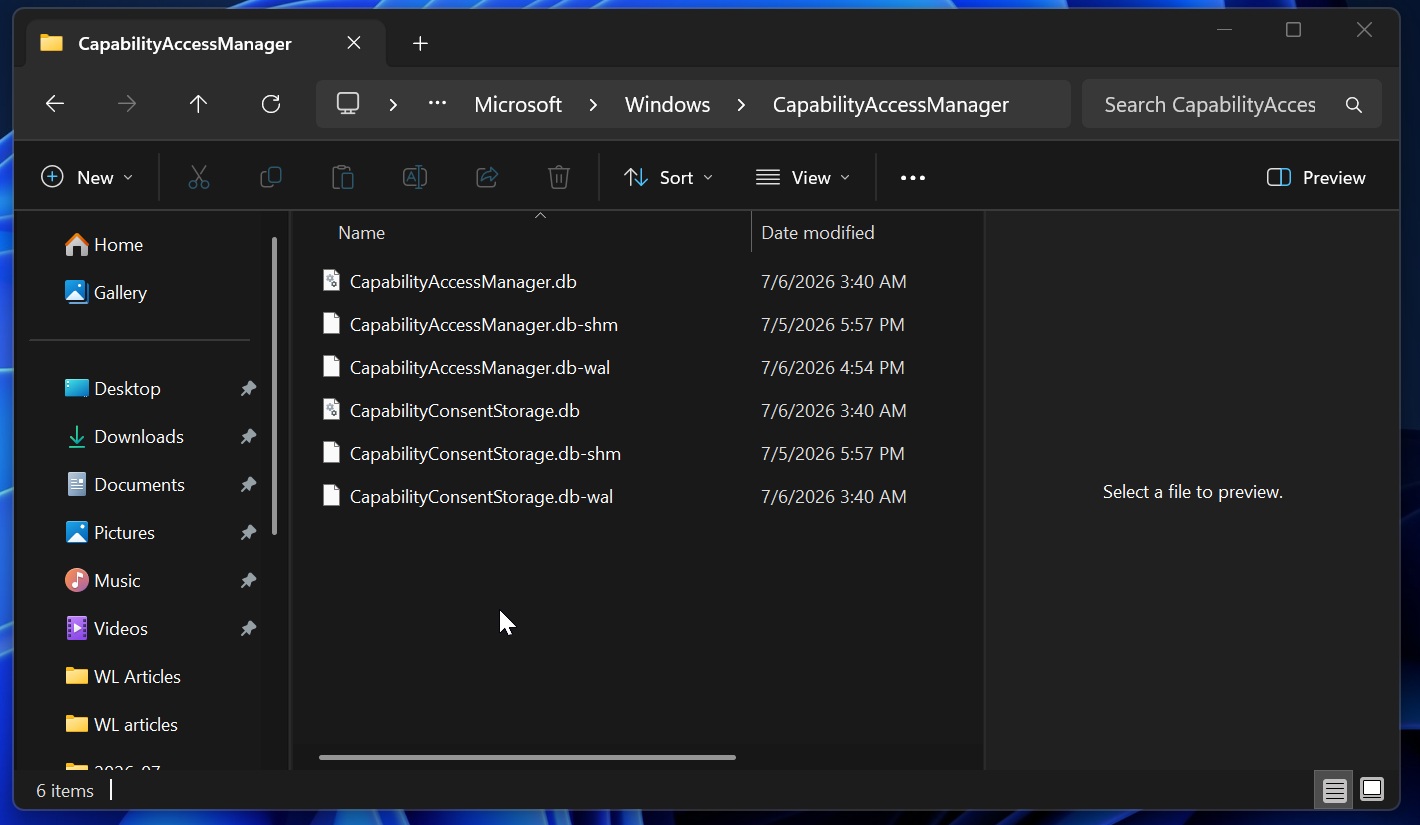
CapabilityAccessManager.db-wal is not the main database itself but a write-ahead log (WAL) for the Capability Access Manager database. This file logs app capability and privacy-related access events, such as camera, microphone, and location usage. While WAL files generally grow temporarily, they should not exceed sizes like 50GB or more. For instance, on some systems, the CapabilityAccessManager.db-wal file has been reported to grow to over 500GB, leading to extensive storage issues.
Microsoft has not provided a detailed explanation, but it’s understood that the issue arises from the OS repeatedly logging access events without properly merging or compacting the WAL file back into the main SQLite database.
Reports of Excessive Storage Usage
Users have reported cases of CapabilityAccessManager.db-wal growing to extreme sizes:
- A Feedback Hub post highlighted the file growing to 200GB.
- A Reddit user on r/techsupport noted a case where the file reached 513GB, as revealed by TreeSize.
- Other reports include sizes of 70GB, 110GB, and 200GB, with some users managing to reduce the file size to 4GB or 15GB after cleanup.
The issue was first reported earlier this year and flagged by Windows Insiders. Microsoft officially acknowledged the problem on June 29, 2026, when it released a fix in the June 2026 optional update (KB5095093). Alternatively, the fix will roll out automatically in the July 2026 Patch Tuesday update.
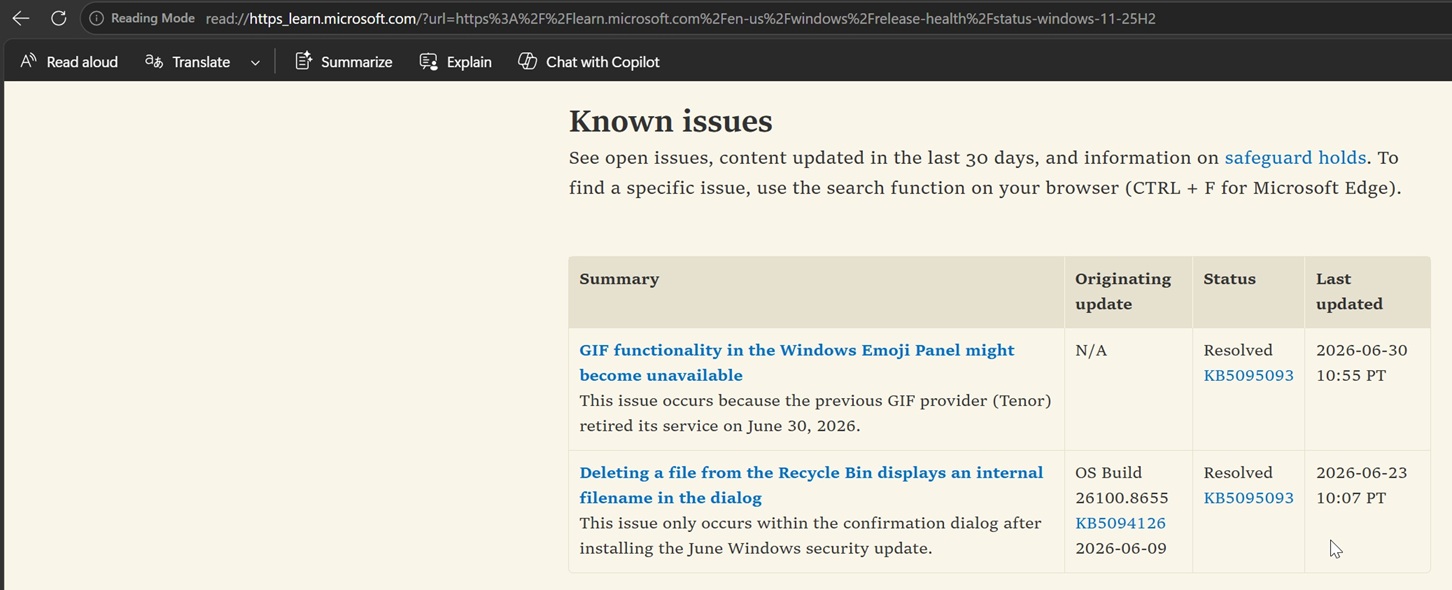
Despite these updates, Microsoft has not provided a full public explanation or listed it as a known issue on the Windows Dashboard. The release notes only briefly mention improved disk space usage for the CapabilityAccessManager.db-wal file. This limited information makes it difficult for users to connect the issue to the “System & Reserved” storage category in Settings.
How to Check If Your PC Is Affected
To determine if your PC is impacted by this storage bug, follow these steps:
- Open Settings > Storage > Show more categories > System & Reserved > System files.
- If the storage usage is abnormally high (e.g., tens or hundreds of gigabytes), you might be affected.
- Use tools like WizTree, TreeSize, or WinDirStat (run as administrator) to identify the oversized file.
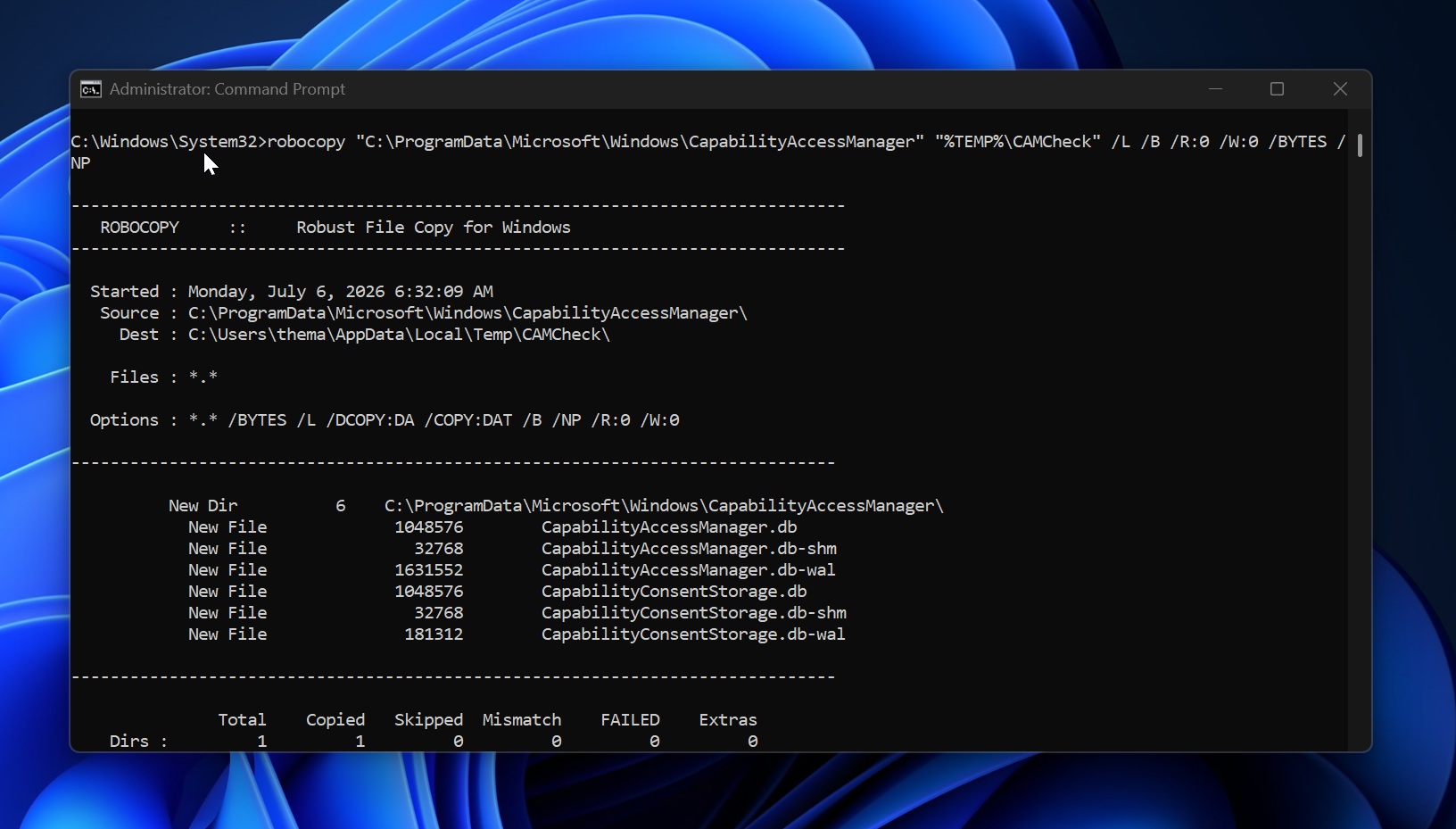
- Alternatively, use the following command in an elevated Command Prompt to safely check the file size:
robocopy "C:\ProgramData\Microsoft\Windows\CapabilityAccessManager" "%TEMP%\CAMCheck" /L /B /R:0 /W:0
This command lists file details without copying or modifying them. Look for CapabilityAccessManager.db-wal. If the file size is several gigabytes or grows rapidly, your system is likely affected.
Temporary Workaround
If your drive is full and Windows Update cannot install the patch, you can rename the oversized CapabilityAccessManager.db-wal file from the Windows Recovery Environment or Safe Mode. This allows Windows to generate a fresh WAL file. Avoid deleting system files casually.
Conclusion
This storage issue was likely triggered by a Windows 11 update released in February or March 2026. Its impact varies depending on the apps installed and their usage. To mitigate the problem, install the June 2026 optional update (KB5095093) or wait for the July 2026 Patch Tuesday update. For immediate relief, follow the outlined steps to identify and address the oversized file.
Windows Latest appreciates your support. Make us your preferred source on Google Discover and Google Search to help our independent reporting reach more readers.
