





After 31 Years, MS Lets Users Disable Windows 11’s Sticky Keys Popup Inspired by a Windows 95-Era Pinball Game

MS is adding a “Never turn on Sticky Keys with this shortcut” checkbox to the dialog that appears when you unintentionally press Shift five times. Fortunately, the Filter Keys prompt is receiving a similar option. Windows Latest tested the feature in the latest Windows 11 Insider build.
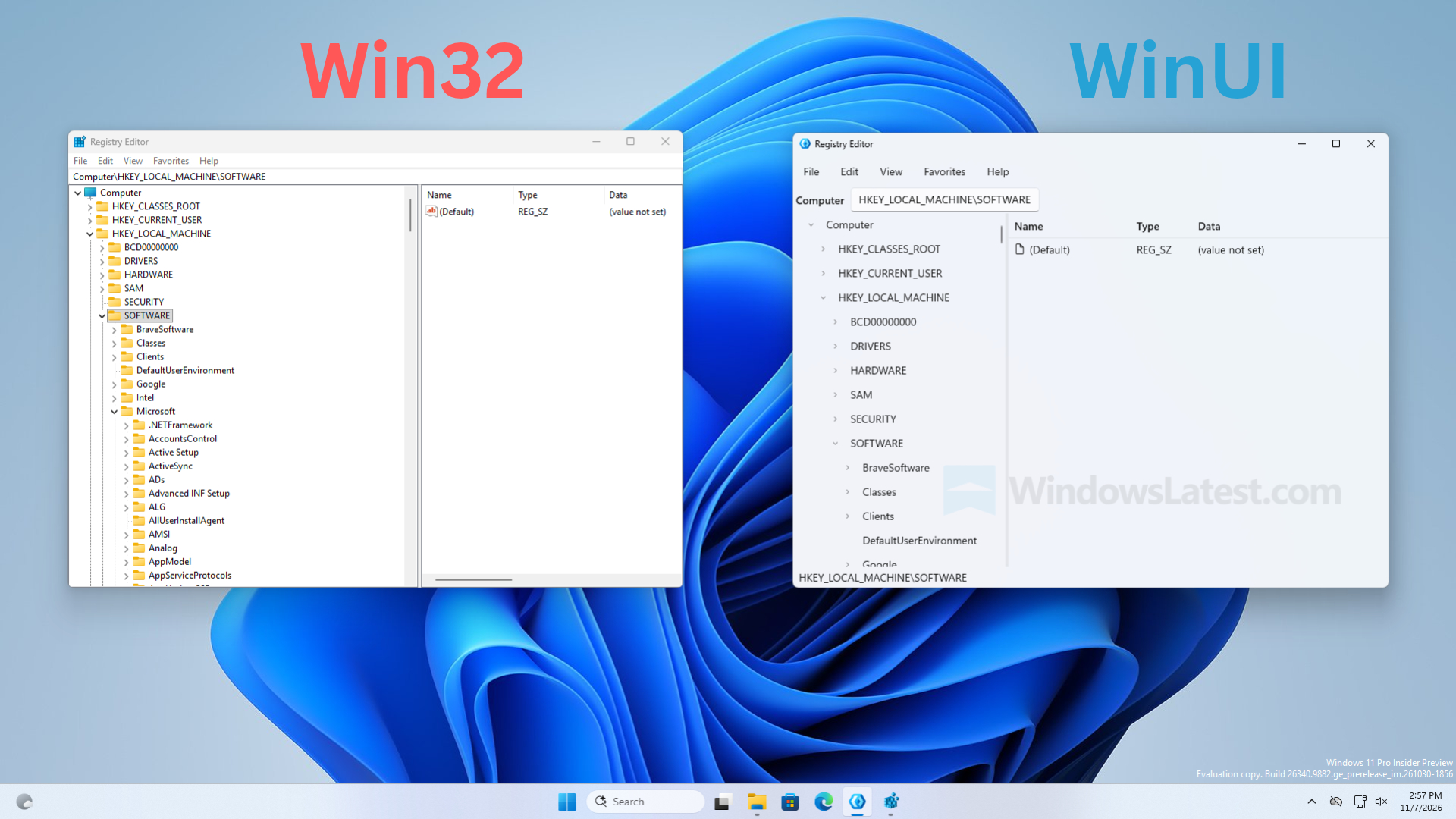
Unfortunately, the dialog remains the same aging Win32 window. However, MS’s design chief responded to a post on X about the issue, saying that he is working to modernize legacy dialogs. The popup may be annoying, but it exists because of a pinball game released in 1995.
Windows 11 Finally Lets You Disable the Sticky Keys Popup Without Opening Settings
I accidentally trigger the Sticky Keys prompt almost every week, despite having no use for the feature. When Jen Gentleman, a member of the Windows engineering team, posted on X that MS was “adding the ability to permanently turn off the prompt,” I returned to the release notes I had previously skimmed.
The change is available in Build 26340.9882 (Experimental) and Build 26320.9876 (Beta), both released on November 6 and based on Windows 11 version 26H2. MS says users can “choose not to be asked again” from the Sticky Keys and Filter Keys dialogs. However, it is part of a Controlled Feature Rollout in the Experimental build, so it may not be available to everyone yet.
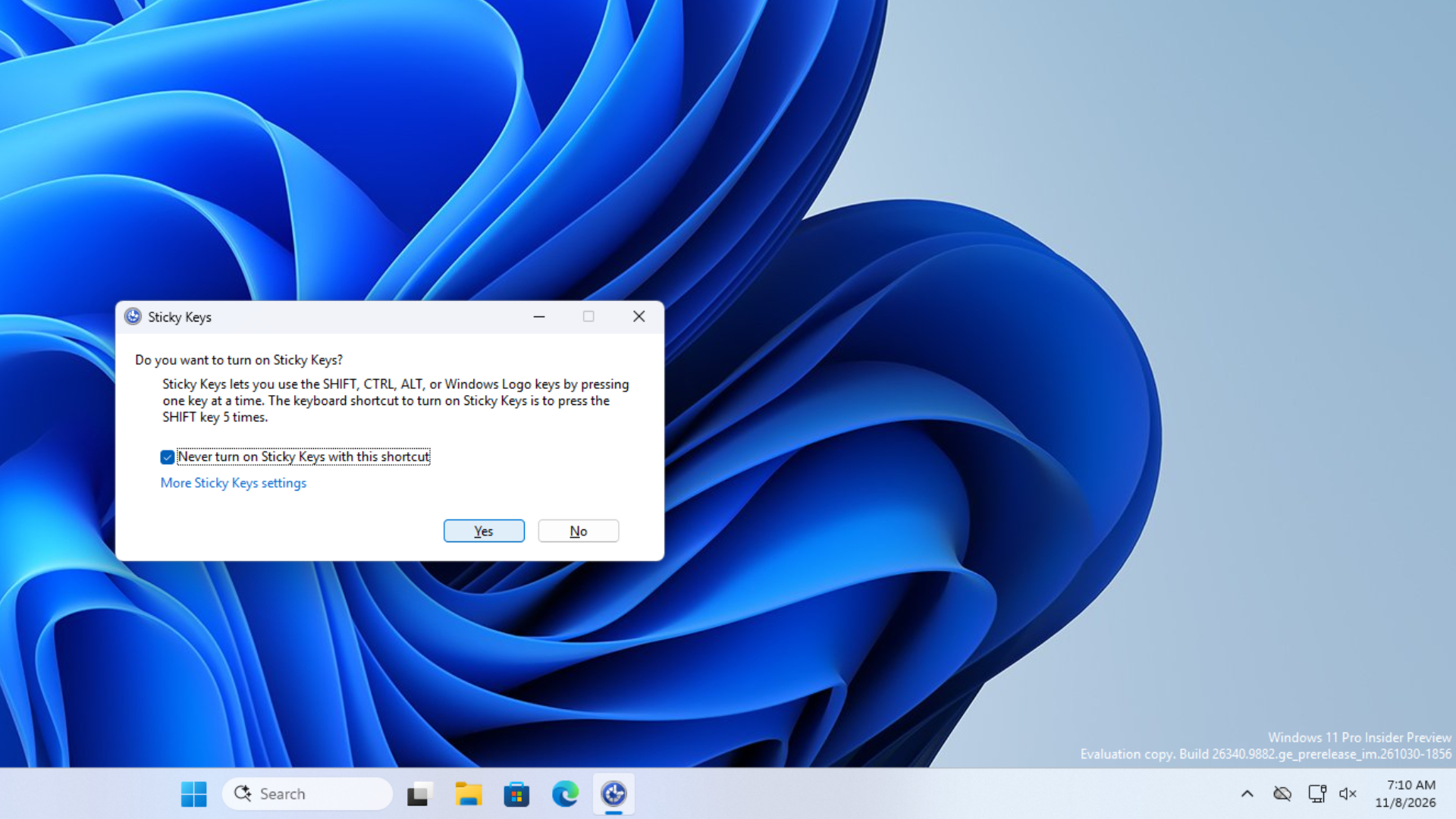
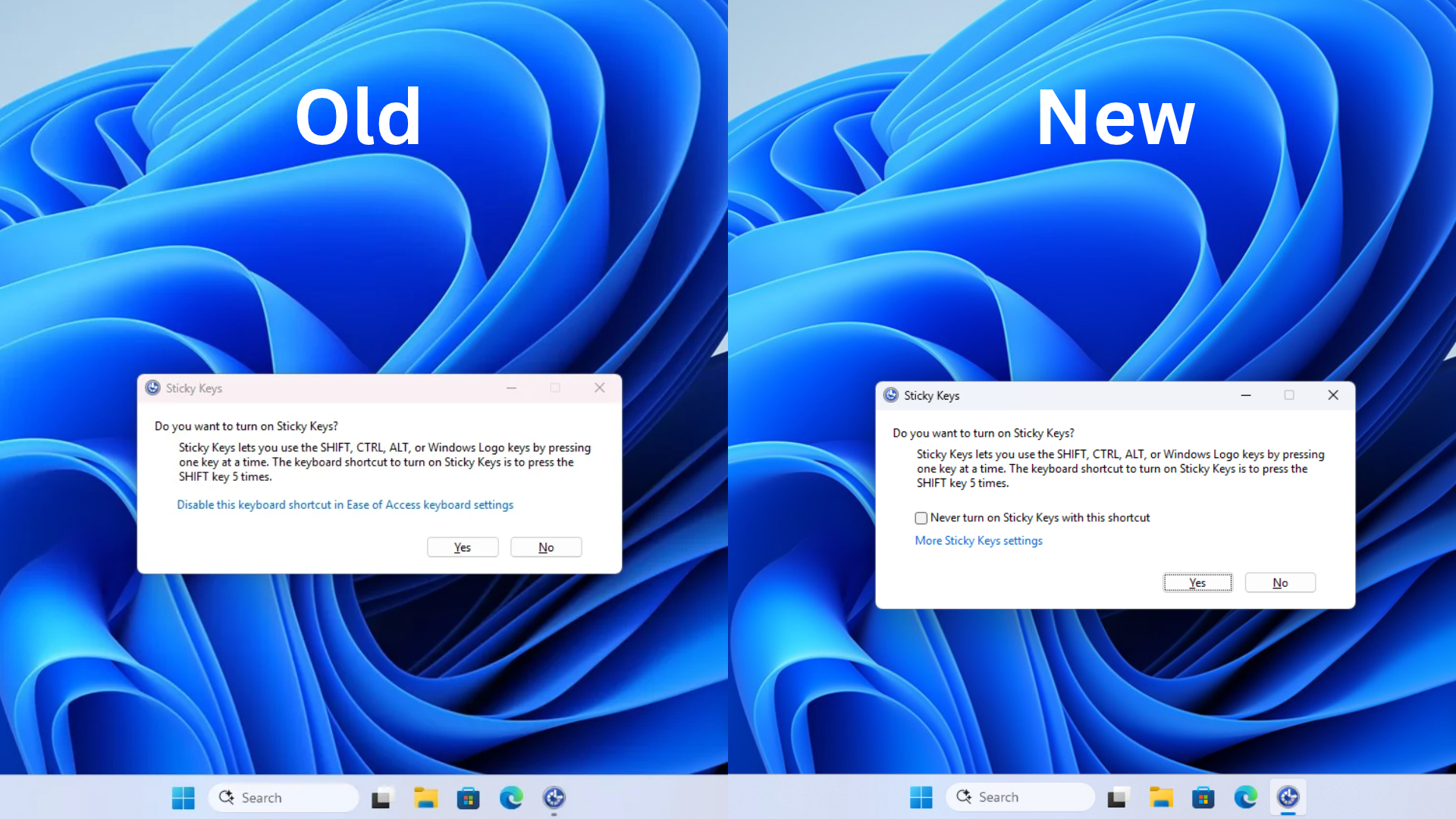
I installed Build 26340.9882 on my virtual machine and pressed Shift five times. The old dialog offered Yes and No buttons, along with a link to “Ease of Access keyboard settings,” even though Windows 11 replaced the Ease of Access name with Accessibility years ago. The new dialog adds the checkbox above a “More Sticky Keys settings” link. I selected it, clicked No, and pressed Shift five more times. Windows did not display the prompt again.
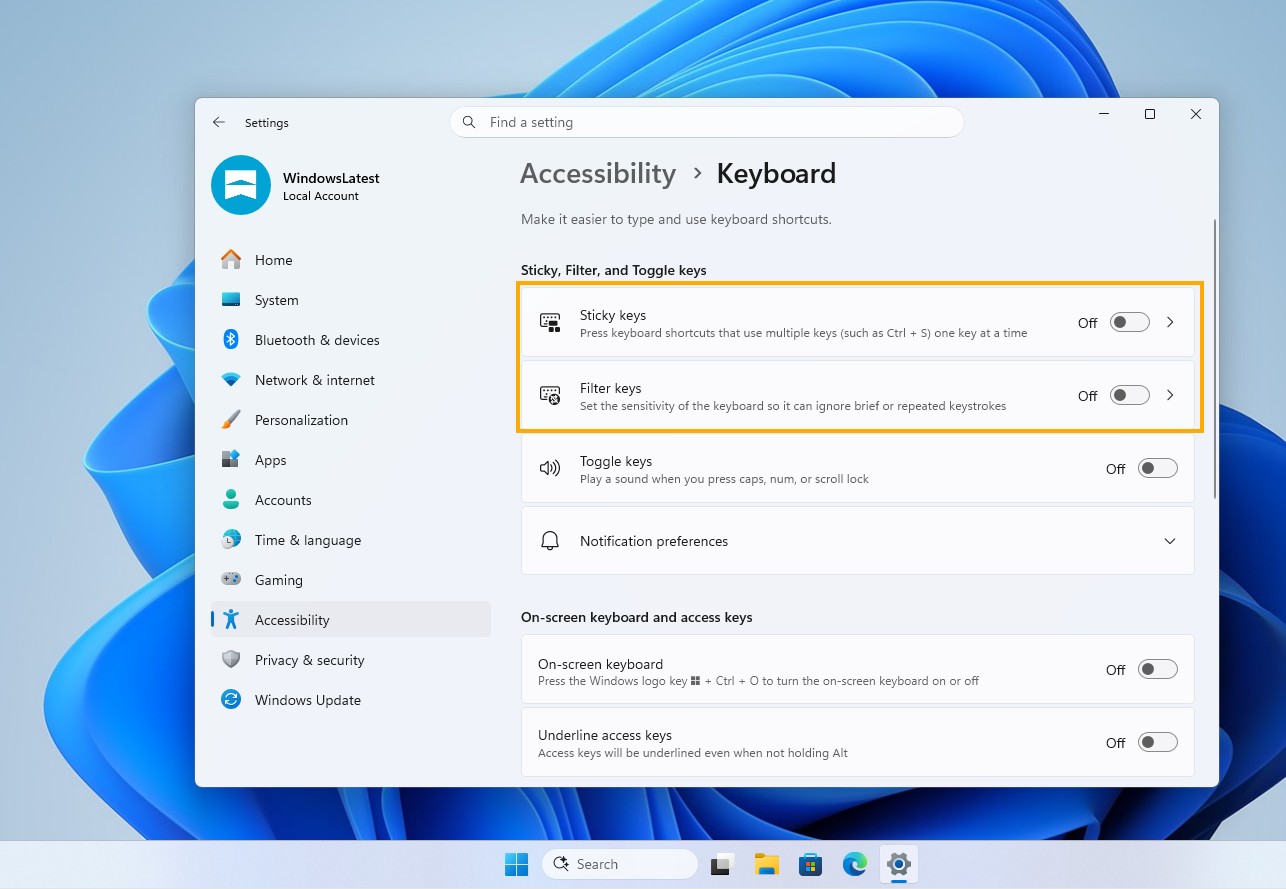
Sticky Keys is not being removed, and it can still be enabled through Settings > Accessibility > Keyboard. As Jen noted in a reply, turning off the shortcut there has “always been possible,” but many people discover that option only after dismissing the popup dozens of times. One user responding to her post recalled an online game that used Shift to swap potions, where the prompt caused “countless” deaths during battles.
MS’s Design Chief Is Working to Modernize Legacy Dialogs
The checkbox resolves the immediate annoyance, but there is also good news for anyone who thinks the dialog looks dated. Ironically, MS updated a 31-year-old Win32 dialog to end a 31-year-old frustration while keeping it on Win32. One user on X quickly pointed out that it still does not support dark mode.
In response to Jen’s post, another user asked MS to “WinUI-fy” legacy Win32 dialogs and MMC applications. Marcus Ash, MS’s Corporate Vice President of Design and Research for Windows and Devices, replied, “Noted and working on that too.”
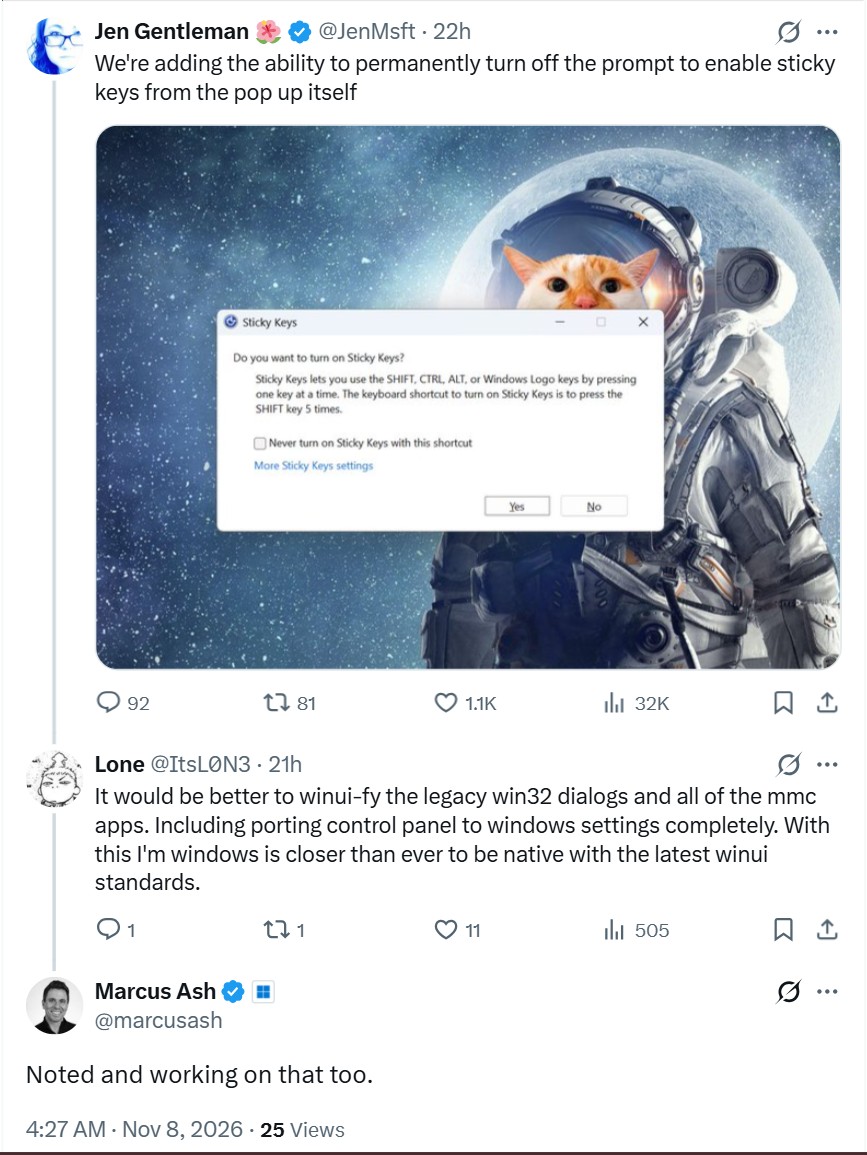
Ash did not say that the Sticky Keys dialog would be next. However, he said in March that MS was building tools to modernize older dialogs, and Partner Director of Design March Rogers later confirmed that the team was working through its list of legacy dialogs. We also found that the old Defrag tool is included on the WinUI list. MS replacing legacy code with WinUI is one of my favorite developments to see, and I even tried a native WinUI Registry Editor sample today.
The Sticky Keys Popup Exists Because of Space Cadet Pinball
Charles Oppermann, who joined MS in 1994 as Program Manager for Windows Accessibility and also developed the first version of the JAWS screen reader, told Jen that he wrote these dialogs in early 1995. The reason was that the children of Brad Silverberg, who led Windows 95, repeatedly activated Sticky Keys while playing Space Cadet Pinball.
Oppermann added that his team “considered a checkbox back then” but chose instead to give Windows accessibility features greater visibility. The checkbox arriving in 2026 was therefore already under consideration 31 years earlier.
Silverberg recalled a “brutal” meeting with the CIO of Massachusetts about accessibility in Windows 95. “Deservedly so,” he added. Massachusetts and Missouri had strongly pressured MS to improve accessibility, while the Windows 95 Resource Kit described the confirmation dialog as a “precaution against accidental use” and provided a way to disable the hotkey permanently. MS has finally moved that option to the moment when users need it.
What Sticky Keys and Filter Keys Do
Sticky Keys, which originated at the Trace Center before Windows 95, helps people who type with one finger or use a mouthstick. Modifier keys such as Ctrl remain active until the next key is pressed, allowing Ctrl followed by C to work like Ctrl + C. Filter Keys ignores brief or repeated keystrokes, helping people with tremors. MS includes both features among its mobility tools.
These are accessibility features, and as Jen rightly said, “I do wish more people knew about all the accessibility options in Windows—there are so many helpful things.”
It took MS 31 years to add a checkbox to the dialog, but I welcome the change. Windows has many small frustrations like this, and seeing MS address even the smallest one is refreshing. Have you ever lost a game because of the Sticky Keys prompt?
Windows Latest depends on readers like you. Make us your Preferred Source on Google Discover and Google Search, and help our independent reporting reach more people.